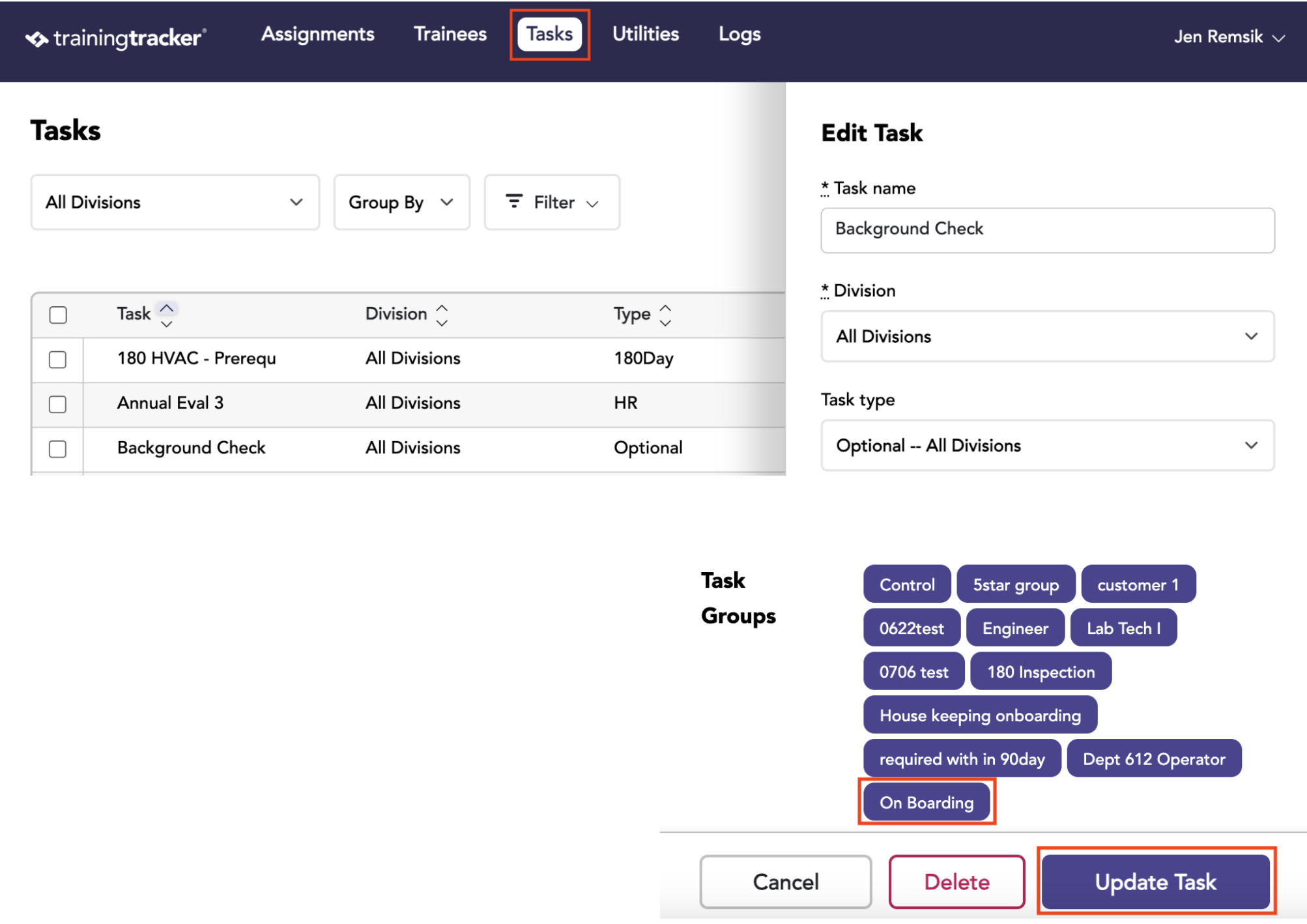
Task Groups allow you to group individual tasks into a series. This will allow you to quickly and easily assign multiple tasks in a batch. They can be assigned based on job title or other training needs.
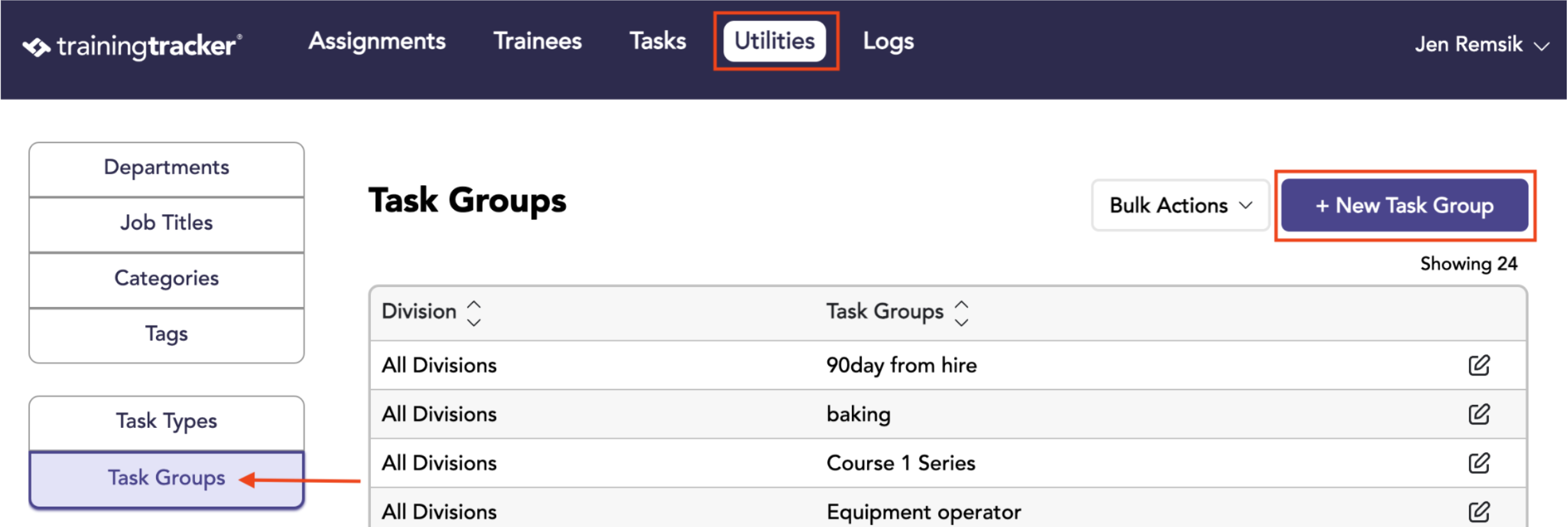
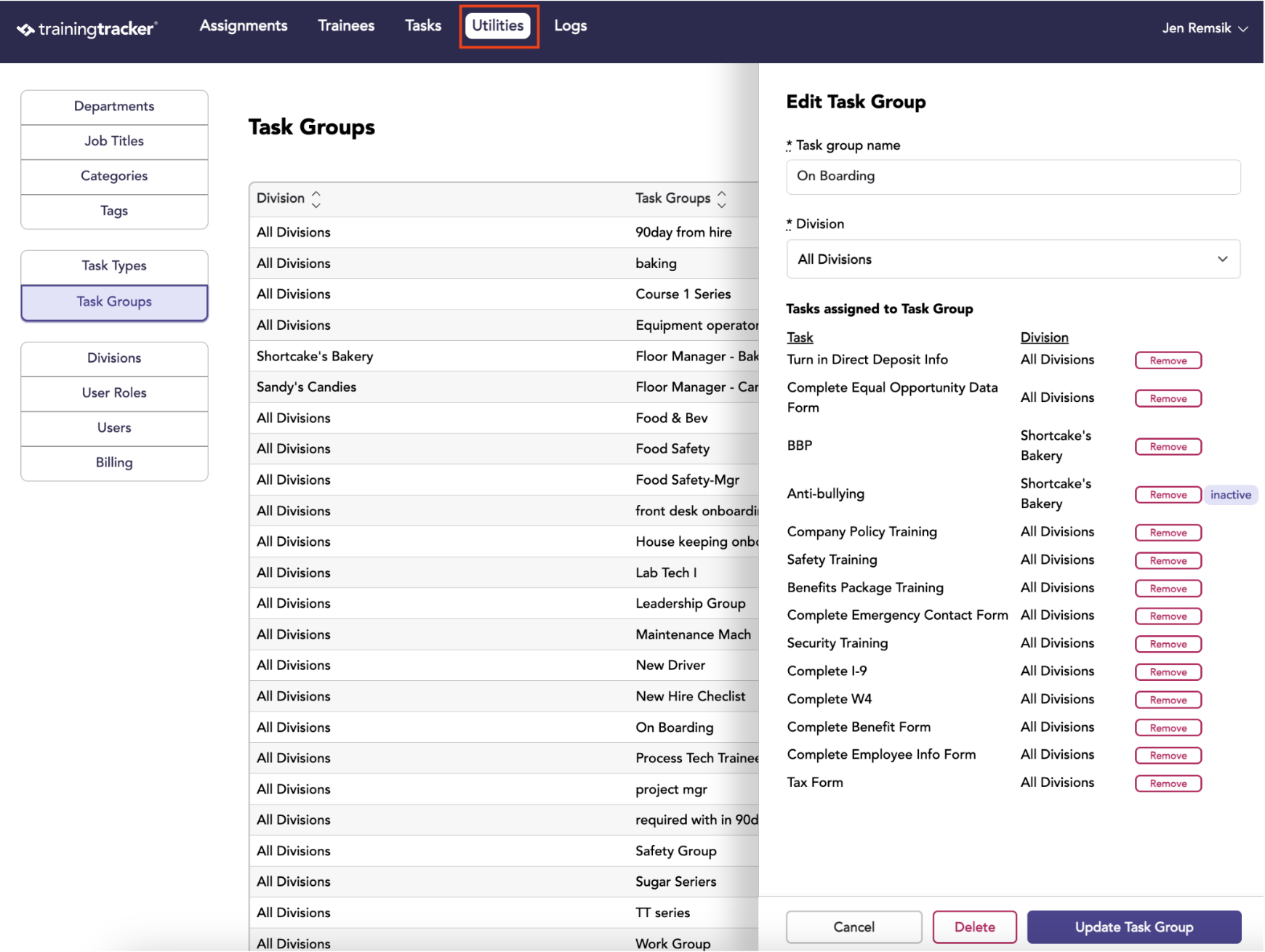
Go to the Utilities tab, select the Task Groups
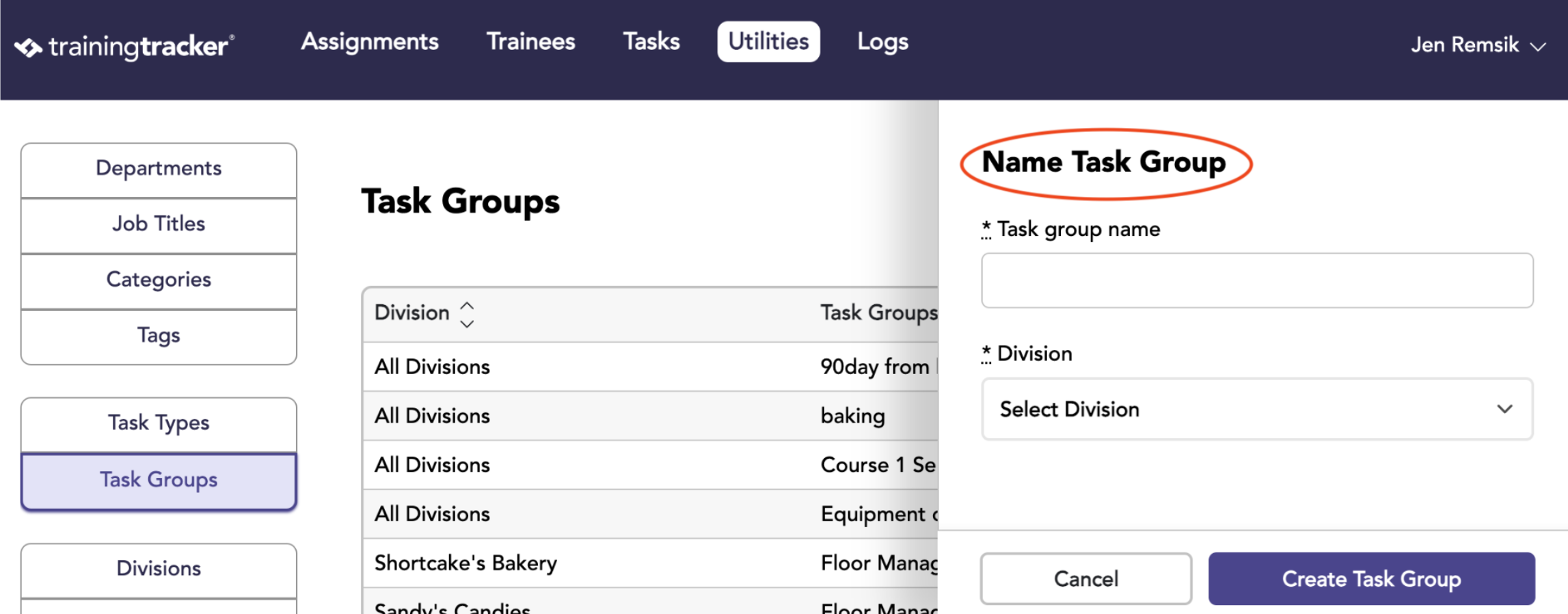
Enter the name of the new task group in the text box, then click “Create Task Group”.
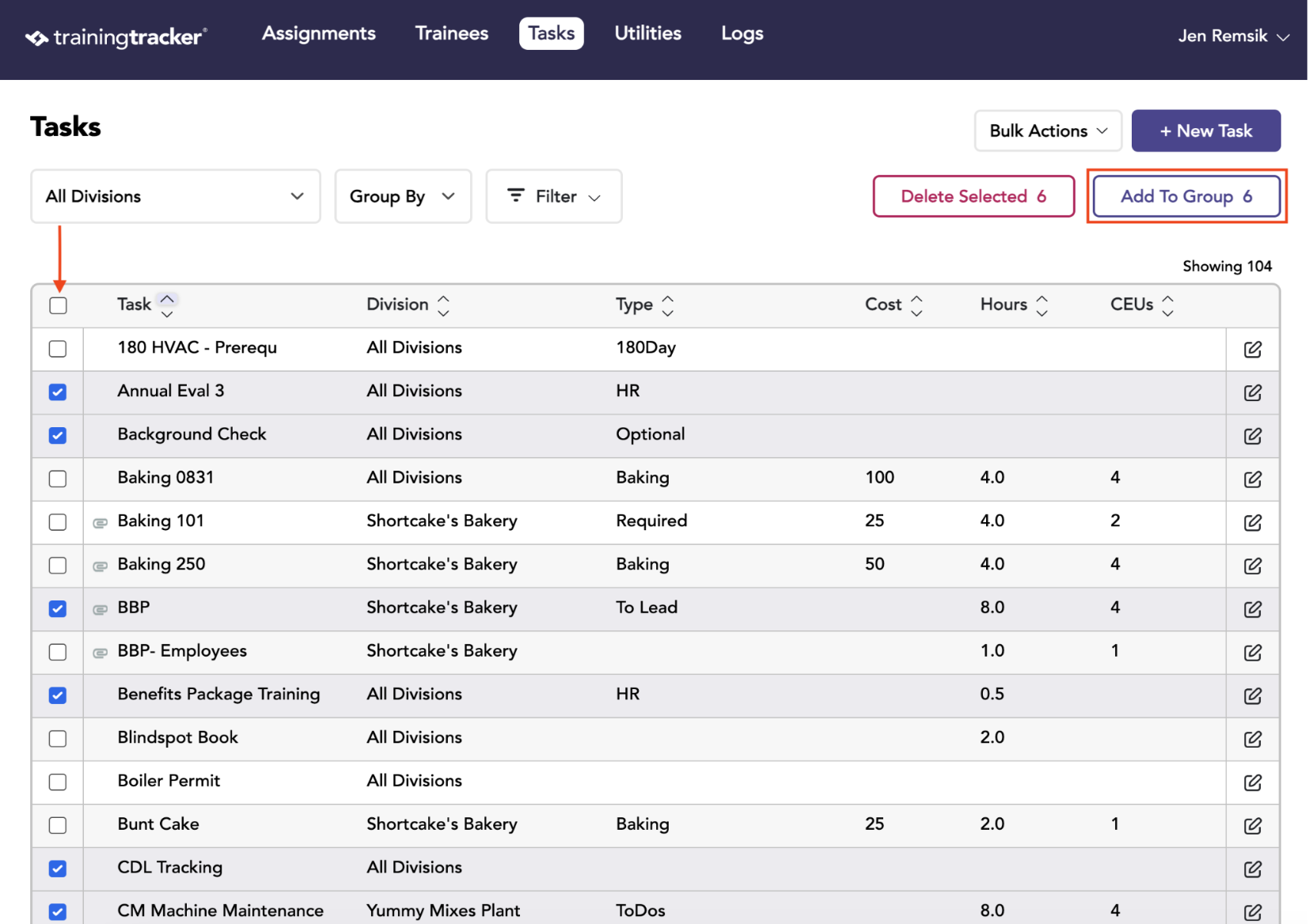
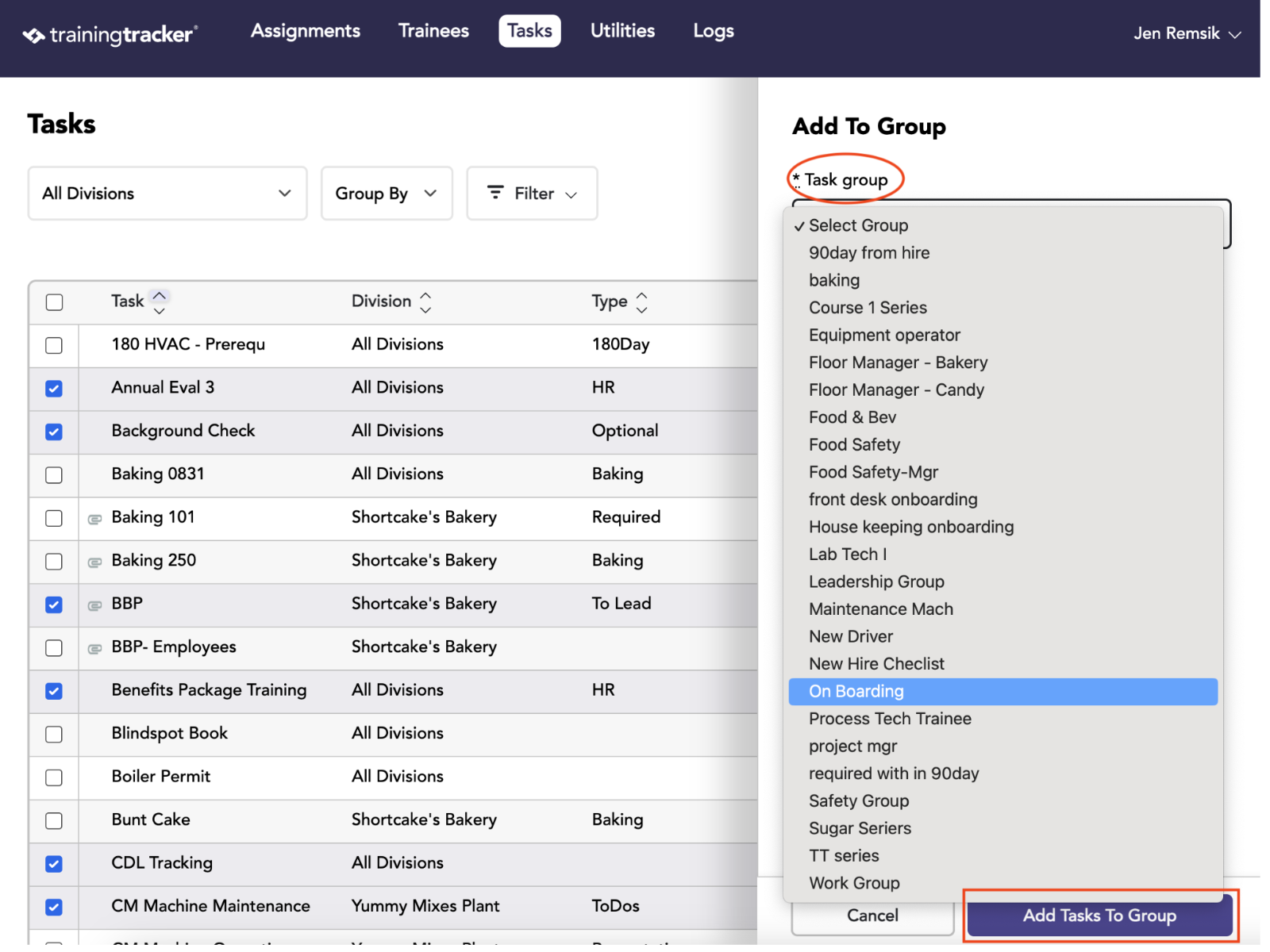
Go to the Task tab. Select the tasks you need to group together, then click “Add to Group.”
After clicking the “Group Selected” button, you will be prompted to assign the selected tasks to a Task Group. Use the drop-down menu to select the desired Task Group and click the “Add Tasks to Group”.
You can view the tasks assigned to a group by clicking the desired Task Group edit button.
When you click edit for a particular task, you will see which groups the task is assigned to.