Email staff when training is due, or send an update on completed training
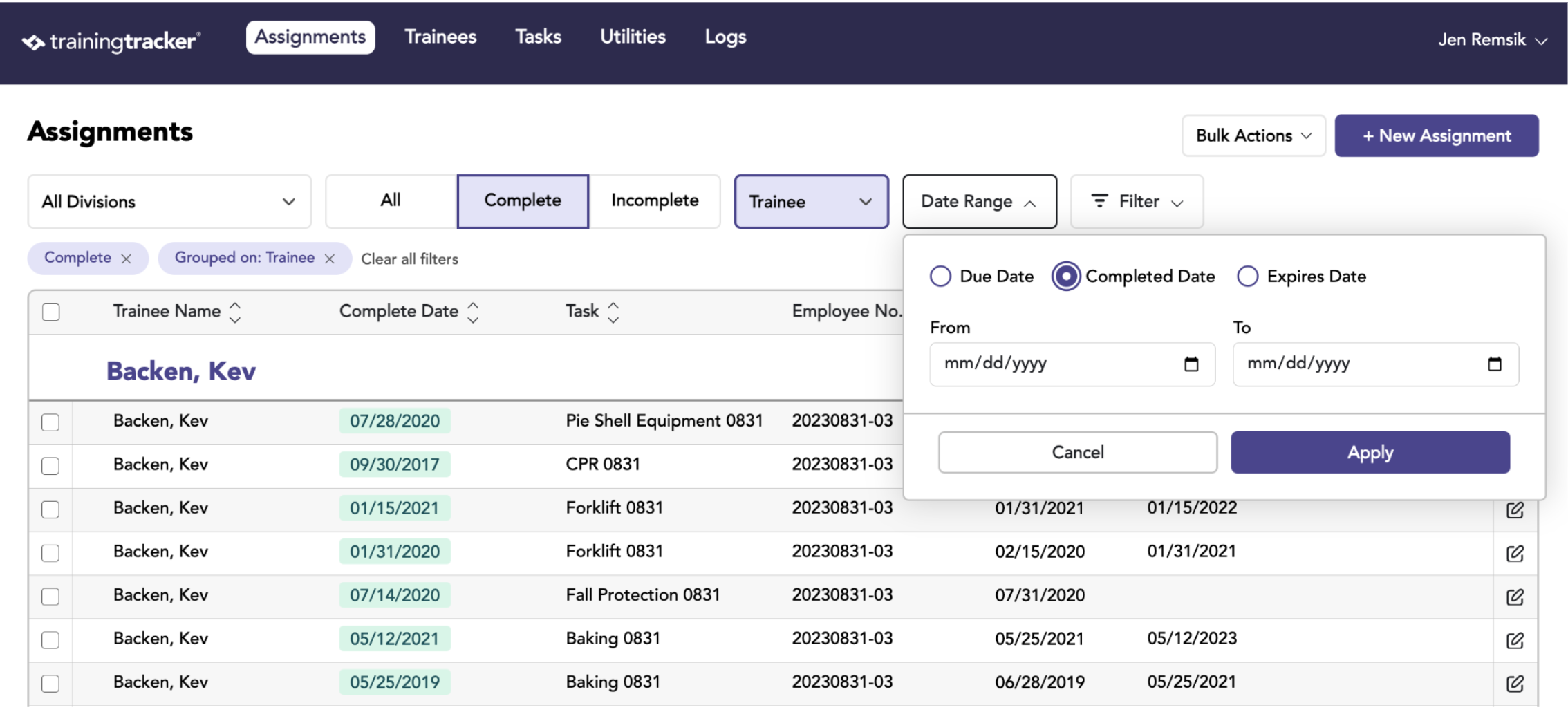
Go to the Assignments tab, and apply the desired filters from the dropdown
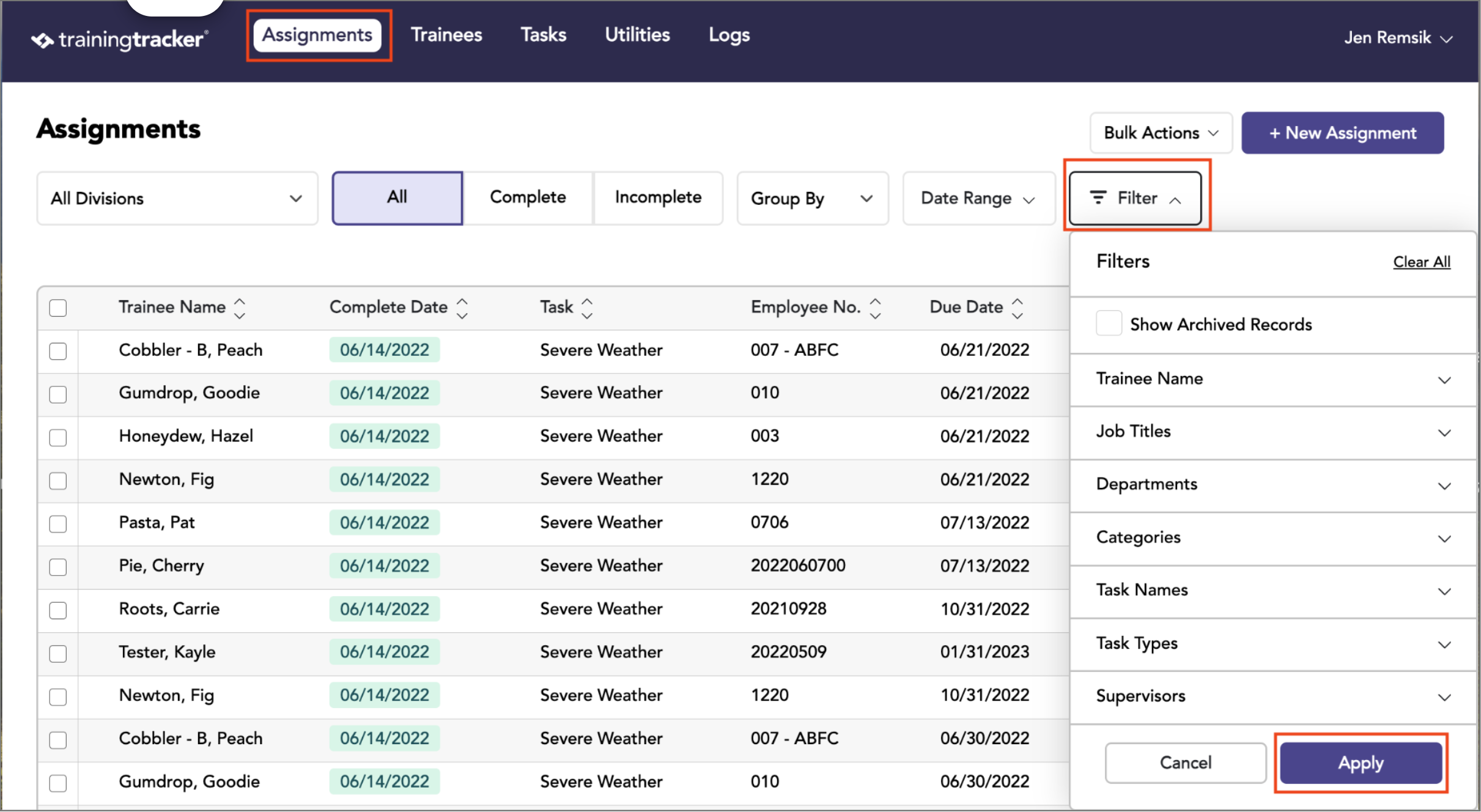
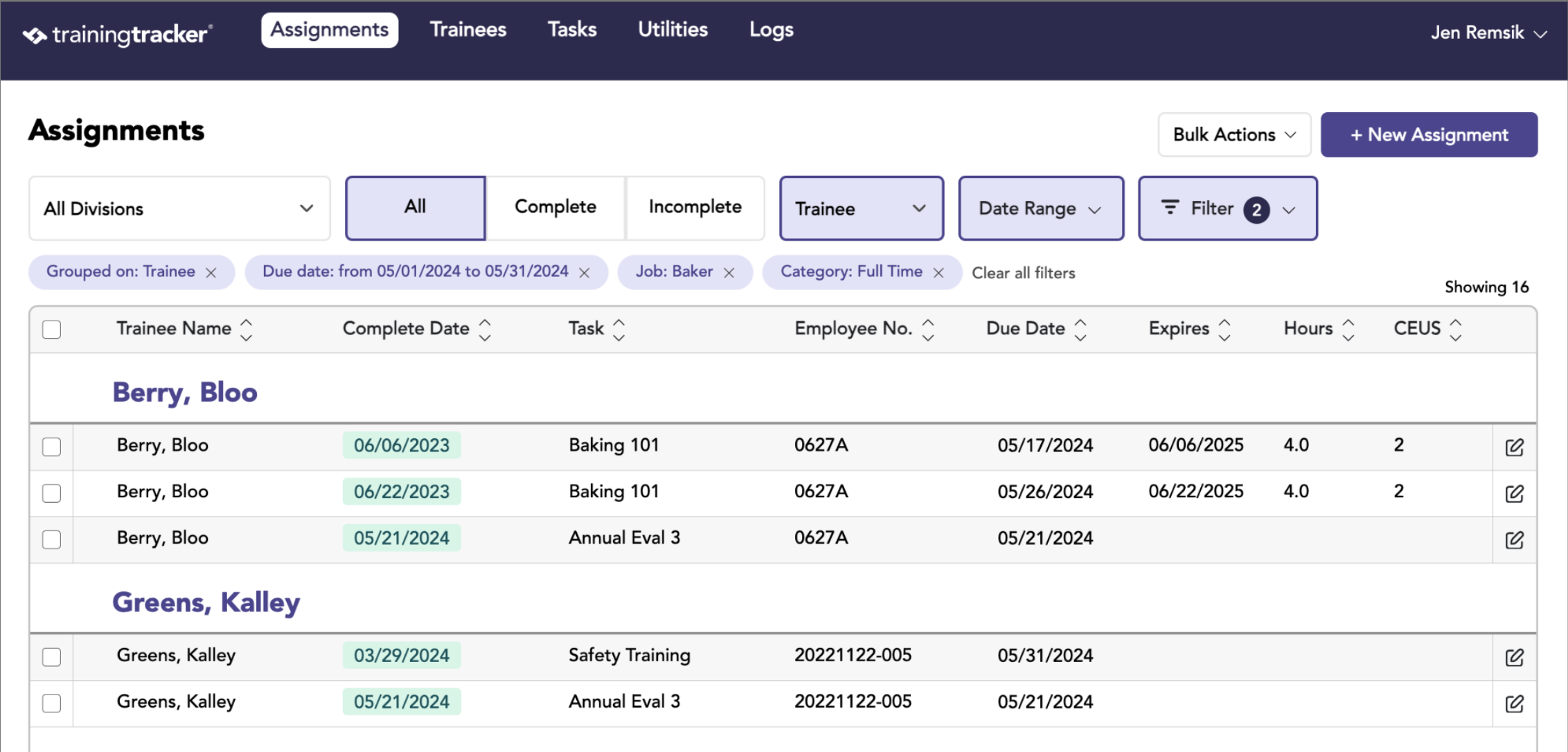
Group, and then select Email from the Bulk Action
- Once a search has been made, group by trainees
- Grouping does not affect the email sent, but it will show you what each trainee will receive.
- Also, checkboxes have no bearing on emails.
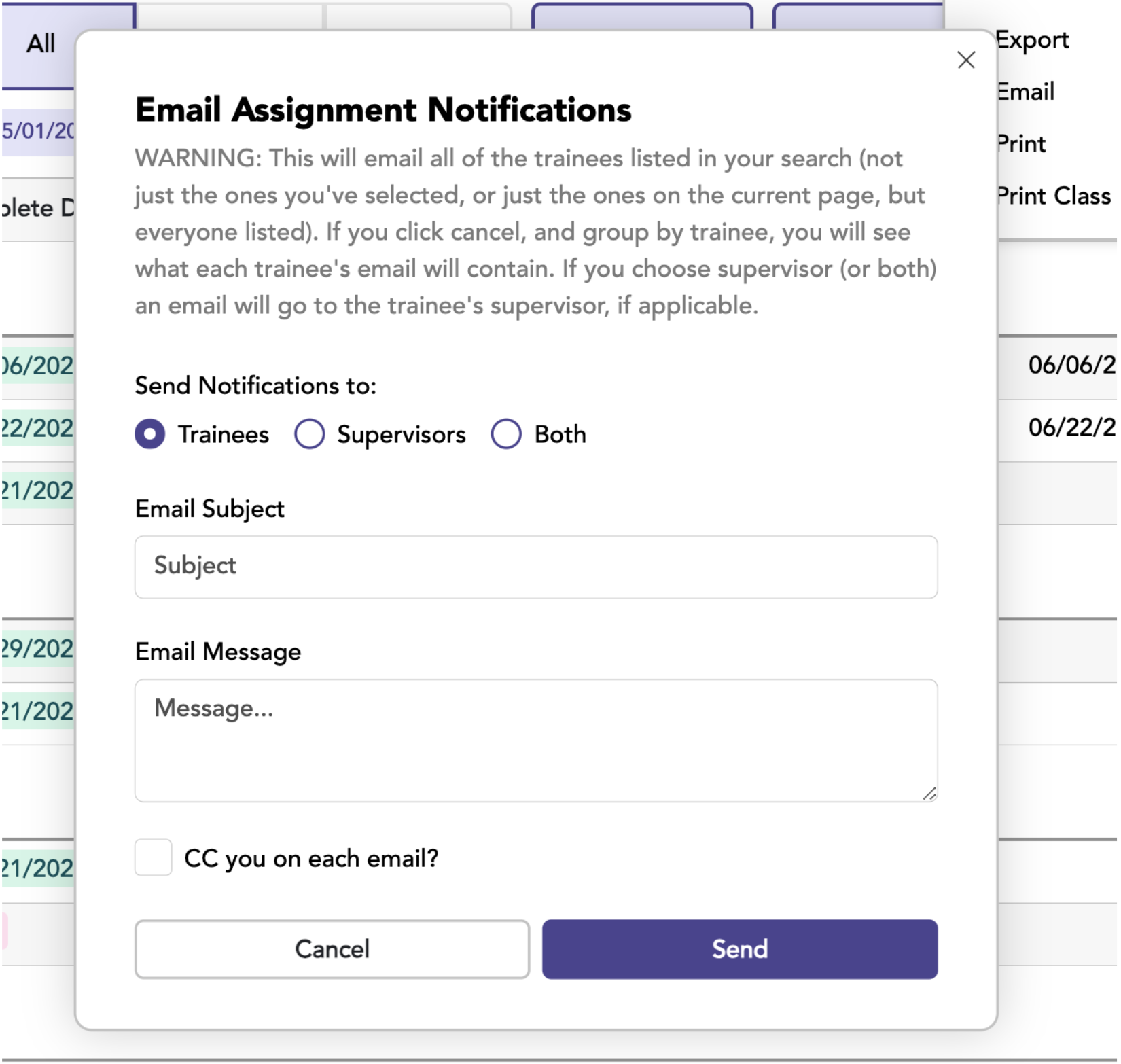
- Click the “Email”
- An email draft box will appear
Choose Trainees or Supervisors, or Both
ALL trainees from the search will be included, not just the ones currently viewable on the page.
- Each trainee will receive an email with just their assignments
- Each Supervisor will receive an email for each trainee
Email Example 1: Basic To-Do Report
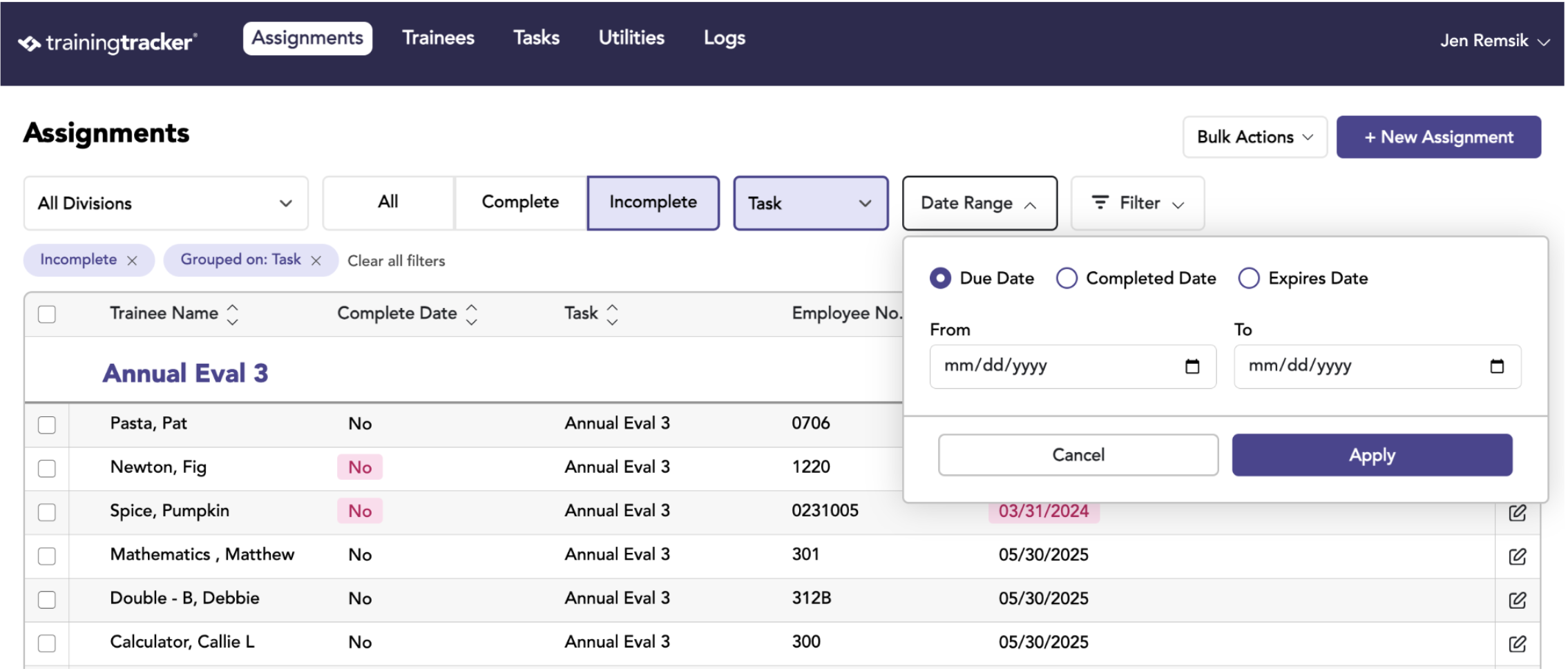
- Search by Incomplete Assignments to see all assignments without a Completed Date
- Include Date Due and a Date Range to see all assignments due at that particular time
- Group By Tasks to see how many people need to complete each task
Email Example 2: Calendar Year Completed Training
- Search by Completed Assignments
- Include Completed Date and a Date Range to see all assignments completed during that particular time
- Group By Trainees to see what each people had completed