Create and print an attendance sheet to collect signatures or to scan QR codes.
Step 1: Select the Assignments tab in the top menu

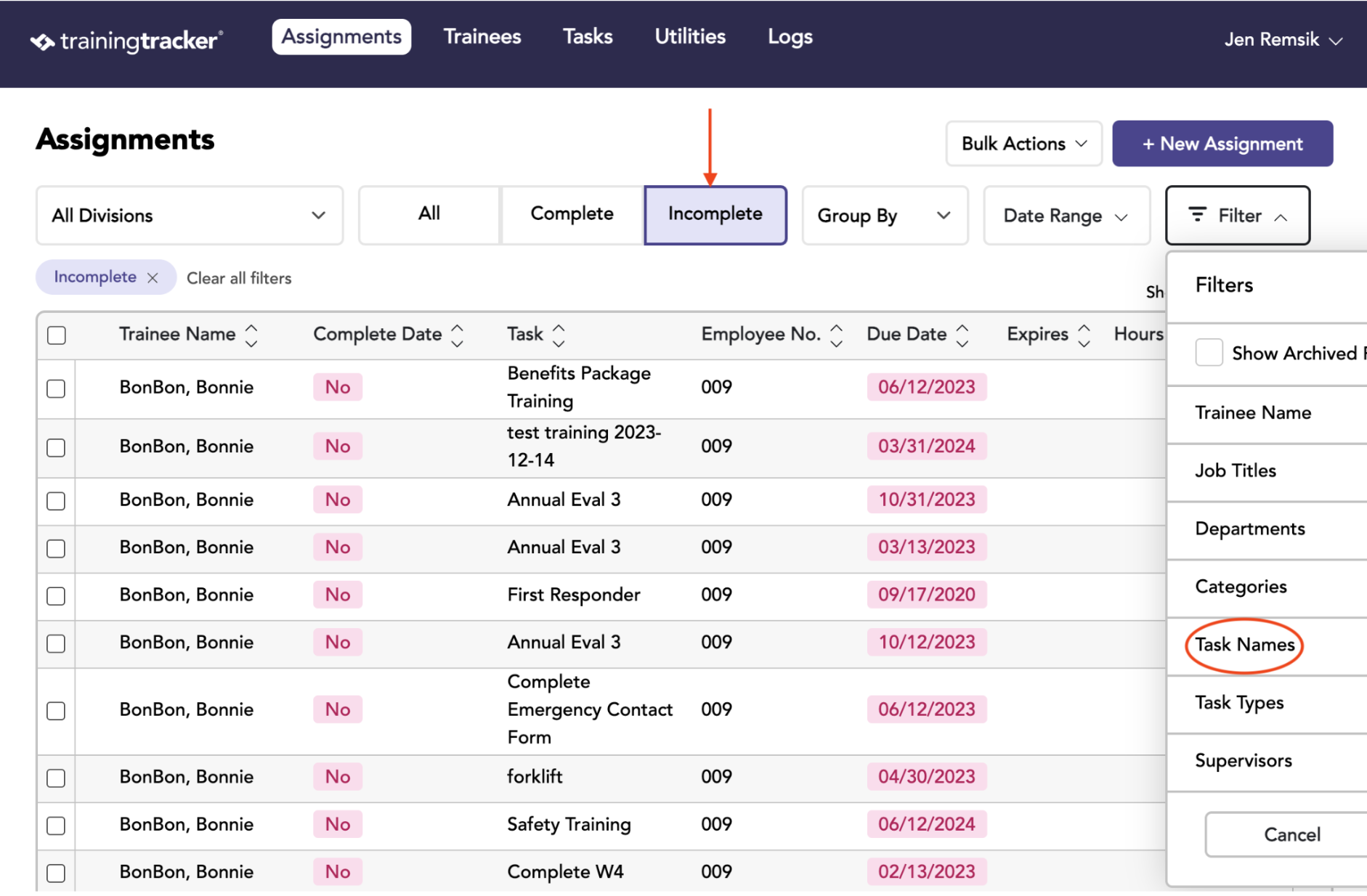
Step 2: Choose Filters
Click Incomplete. Then select the desired Task Name in the Filter dropdown and click “Apply.”
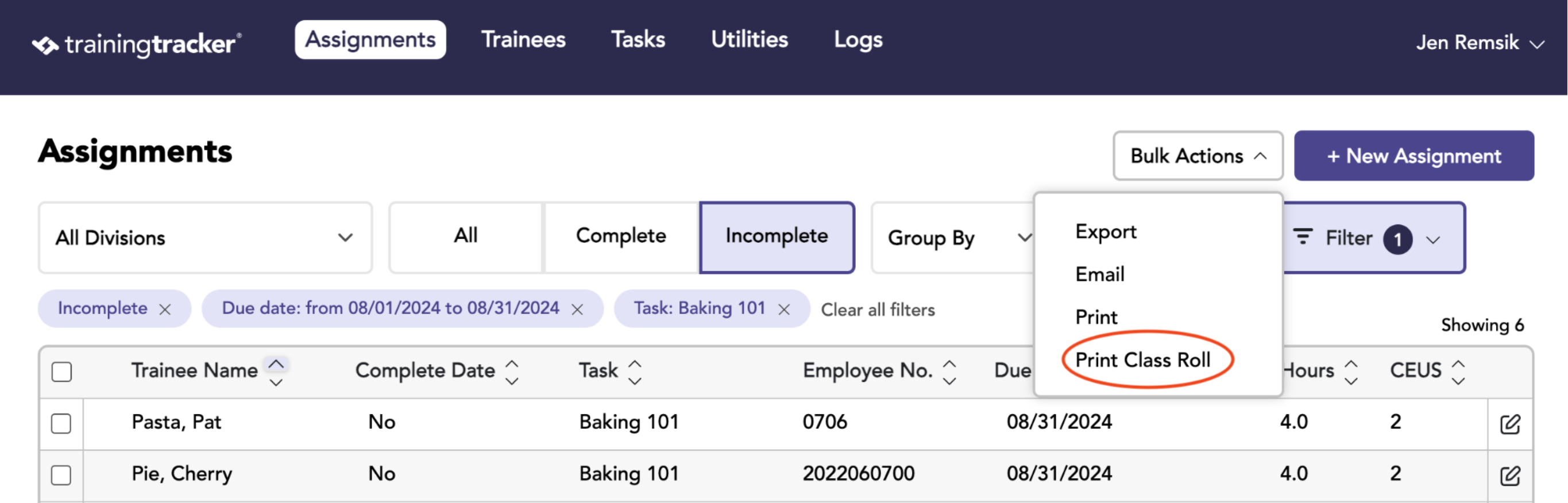
Step 3: Print Class Roll
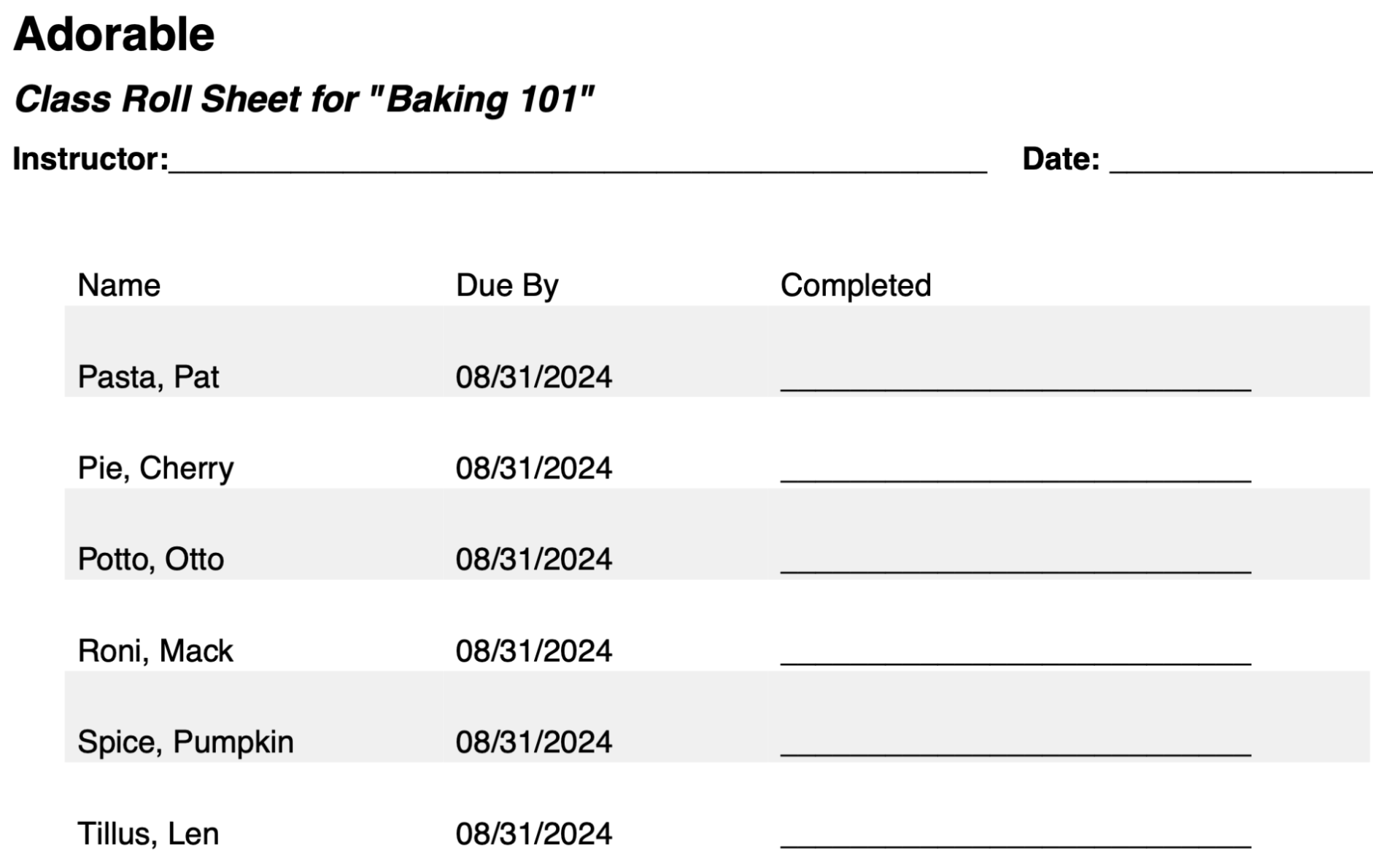
Result: Ready-to-Use Class Roll
This is an example of a text class roll.
With Pro and Enterprise feature packages, you can generate a class roll with QR Codes.